Formatting Text in Notes: A Complete Beginner's Guide (Mobile App)
Reading time: ~6 min
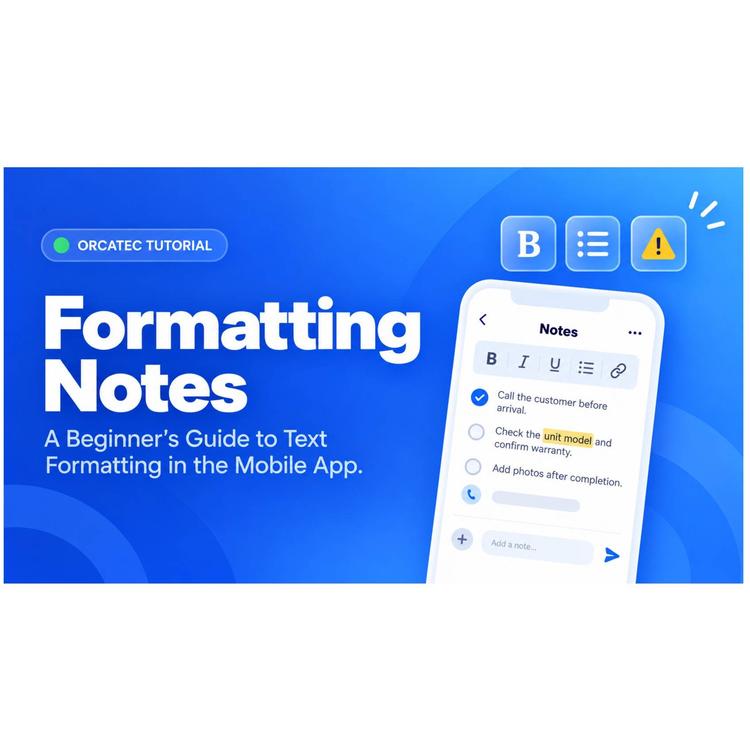
Notes in the Orcatec mobile app aren't just plain text. A handful of simple typing conventions turn a note into something an installer can act on in the field — a phone number becomes tap-to-copy, a line starting with a dash becomes a proper list, and a line starting with "Warning" turns into a yellow alert box the installer can't miss.
This guide covers every one of those conventions — tap-to-copy fields, lists, bold text, warning boxes, and paragraph dividers — with real examples of exactly what you type and what the installer sees on their phone.
On this page
- Tap-to-copy fields: phone, email, password, link
- Lists
- Bold text
- Warnings
- Paragraph separator
- Quick reference
- Frequently asked questions
- Checklist for formatting a note
Tap-to-copy fields: phone, email, password, link
When you type a phone number, email address, or a line labeled "Password," the app automatically detects it and turns it into a tap-to-copy field for the installer — no manual formatting needed on your part, it happens automatically as long as the value is written in a recognizable format. A link (starting with https:// or www.) works the same way, except it opens in the browser instead of copying to the clipboard.
Phone numbers
A structurally valid phone number — the right number of digits with a valid area/exchange code — becomes tap-to-copy. Values that only look like phone numbers, such as record IDs or part numbers, are deliberately left alone.

Valid and invalid phone number formatting in a note.

Asset IDs, record IDs, and table column values that only resemble a phone number stay plain text.
Why these specific numbers don't trigger Advanced
The detection has a few deliberate guardrails, so it doesn't misfire on things that only look like phone numbers:
- It won't trigger if the digits touch a letter or word directly (for example, id1444265515 stays plain text, protecting record IDs and similar values).
- It won't trigger across a tab or line break, so a phone-shaped number split across table columns stays plain text.
- VINs, asset IDs, and part numbers are left alone even when they're long strings of digits.
- N11 codes (211, 311, 411, 511, 611, 711, 811, 911) aren't valid area or exchange codes, so numbers like 911-000-0000 stay plain text.
Only spaces, dashes, and parentheses are recognized as separators — periods (855.301.1719) are not.
Email addresses
A standard email pattern — first.last, plus-tag, underscore, dash, and subdomains are all recognized, in any letter case — becomes tap-to-copy the same way a phone number does.

Valid email addresses rendered as tap-to-copy blue text.

An incomplete address, one missing a local part, one using a space instead of at-sign, and a spelled-out at / dot com note all stay plain text, since none of them are a structurally valid email.
Passwords
A line whose label contains the word "Password" is copied to the clipboard exactly as typed, with no extra spaces added — handy for pasting into a router or panel login without retyping it.

Password lines rendered as tap-to-copy blue text in a note.
Links
A link needs a recognizable prefix to trigger — https:// or www. — before the app treats it as tappable. A bare domain name on its own, such as example.com/install, is deliberately left as plain text, since it's easy to mistake a plain mention of a domain for an actual link.

example.com/install and www.example.com both become tap-to-open links, while a bare domain without a prefix, and a note with a typo in the prefix, stay plain text.
Here's exactly what each type looks for, and what happens when the installer taps it:
| Type | What triggers it | What happens when the installer taps it |
| Phone number | A structurally valid number (7 to 15 digits, valid area/exchange code; separators can be spaces, dashes, or parentheses) | Copies the digits to the clipboard. Does not open the dialer. |
| A standard email pattern (first.last, plus-tag, underscore, dash, subdomains, mixed case are all recognized) | Copies the address to the clipboard. Does not open a mail app. | |
| Password | The line's label contains the word "Password" | Copies the exact value (no extra spaces) to the clipboard. |
| Link | Starts with https:// or www. | Opens the device's default browser, then returns to the app normally. |
Lists
Start a line with -, *, or a number followed by a period or a closing parenthesis (1. or 1)) — as long as a space follows the marker — and it becomes a real list item. A dash or asterisk always renders as a plain bullet; a number keeps the exact number and style you typed. As a bonus, the line directly above a list (its heading or label) automatically renders in bold.

A heading line becomes bold automatically because a list follows it, and each of the four marker styles (dash, asterisk, number-period, number-parenthesis) renders as a proper list item. Below that, the same four markers without a space after them are left as plain, unformatted text.
Note: the required space after the marker is easy to miss when typing quickly. A dash with no space after it will not become a list item; a dash with a space after it will.
Mixing marker styles in the same list Optional
You can mix dash, asterisk, and numbered markers within a single list — each line is evaluated on its own. A dash or asterisk always renders as a plain bullet no matter what marker the line above it used, and a numbered marker keeps whichever exact number and punctuation style (1. or 1)) you typed for that line.
Bold text
Wrap text in double asterisks and it renders bold. No other markdown-style emphasis (single asterisks for italics, underscores, and so on) is supported, so double asterisks are the only way to make text bold in a note.

A correctly wrapped line renders bold. Below it, three near-miss attempts (no space before the closing text, a space right after the opening asterisks, and bold text that is never closed) all render as plain text with the literal asterisks left in place.
Tip: the most common way this breaks is an accidental space right after the opening double asterisk — that space stops the bold from triggering.
Warnings
Start a line with Important, Warning, Attention, or Caution (capitalized, followed by a colon) and that line renders as a yellow alert box with a warning icon. The section containing it also auto-expands, so the installer can't accidentally leave a warning collapsed and miss it.

All four trigger words - Important, Warning, Attention, and Caution - produce a yellow box containing only that line’s sentence. A lowercase version, a sentence that merely mentions the word mid-sentence, and a version without a colon all fail to trigger the box and stay as plain text.
Note: the box only ever contains the sentence written on that same line. A new line always starts a fresh block, even if the next sentence reads like a natural continuation — so if a warning needs a second sentence, write it on the same line as the trigger word.
Paragraph separator
Leave exactly one blank line between two blocks of text within a section, and the app draws a visible divider line between them — a quick way to visually separate distinct pieces of information without needing a new heading for each one.

Two paragraphs separated by a visible divider line, because exactly one blank line sits between them.
Note: this doesn't apply between a heading and the very first line right after it — that combination never gets a divider, even with a blank line in between. And a blank-line gap by itself does not create a heading: if you want a bold section title, pair the gap with the list-heading behavior above, or use bold text directly on the title line.
Quick reference
- Phone, email, and "Password"-labeled lines become tap-to-copy automatically — no dialer or mail app opens.
- Links need https:// or www. to become tappable; a bare domain name stays plain text.
- Lists need a marker (-, *, 1., or 1)) followed by a space.
- Bold needs double asterisks with no space right after the opening pair.
- Warnings need one of four exact trigger words at the very start of the line, followed by a colon: Important, Warning, Attention, or Caution.
- Exactly one blank line between two blocks (not right after a heading) adds a visible divider.
Frequently asked questions
Can I use these same conventions on the web app, not just mobile?
This guide describes how the mobile app displays notes. If you're viewing or editing notes on the web app, check whether the same tap-to-copy and formatting behavior applies there before relying on it in the field — the two surfaces don't necessarily render a note identically.
Why didn't my phone number turn into a tap-to-copy field?
Check it against the guardrails above: digits touching a letter or word, a number split across a line break, an N11 exchange code like 911, or periods used as separators will all leave a number as plain text. Rewriting it with spaces, dashes, or parentheses as separators usually fixes it.
Can I use single asterisks or underscores for italics?
No. Double asterisks are the only supported emphasis marker in notes — single asterisks, underscores, and other markdown-style syntax are not recognized and will show up as literal characters in the note.
Does a warning box stay visible, or can the installer accidentally collapse it?
The section containing a warning line auto-expands, so a warning can't be left collapsed and missed. It's a good reason to put safety-critical notes on their own trigger-word line rather than burying them mid-paragraph.
Checklist for formatting a note
- Use a recognizable format for phone numbers, emails, and links so they become tap-to-copy or tappable automatically.
- Label a sensitive value's line with the word "Password" if you want it copied exactly as typed.
- Start each list line with -, *, or a number plus a period or parenthesis, followed by a space.
- Wrap must-see instructions in double asterisks.
- Open safety-critical lines with Important:, Warning:, Attention:, or Caution: so they can't be missed.
- Leave exactly one blank line between two blocks you want visually separated.
None of these conventions require special training to use — they're just typing patterns the app already recognizes. Get them right once, and every note you write reads clearly and acts correctly for whoever opens it in the field.
Other Articles
Contacts in Orcatec: A Complete Beginner's Guide
The Contacts tab is Orcatec's address book for every person and company your team talks to — homeowners, property managers, tenants, and the organizations behind them. This guide walks a brand-new user through the contact list, adding a new contact, and every tab inside the Edit Client window: Personal Info, Properties, Appointments, Projects, Organizations, Associations, Messaging, and Calls.
6 min read Sep 15, 2026
The Dispatch Tab in Orcatec: A Complete Beginner's Guide
The Dispatch tab is where you turn a list of jobs into an actual day for your team: assign visits to technicians, see who's free, and keep the whole week in view. This guide walks a brand-new dispatcher through the Day and Week boards, creating appointments the quick way and the full way, the Appt Queue, and customizing your board.
8 min read Sep 09, 2026
Formatting Text in Notes: A Complete Beginner's Guide (Mobile App)
A handful of simple typing conventions turn a plain note into something an installer can act on: phone numbers and emails become tap-to-copy, lines starting with a dash become lists, double asterisks make text bold, and words like "Warning" trigger a yellow alert box.
7 min read Sep 09, 2026

All-In-One Home Services Management Software


4.95 from 5 based on 17 reviews
Get our latest news