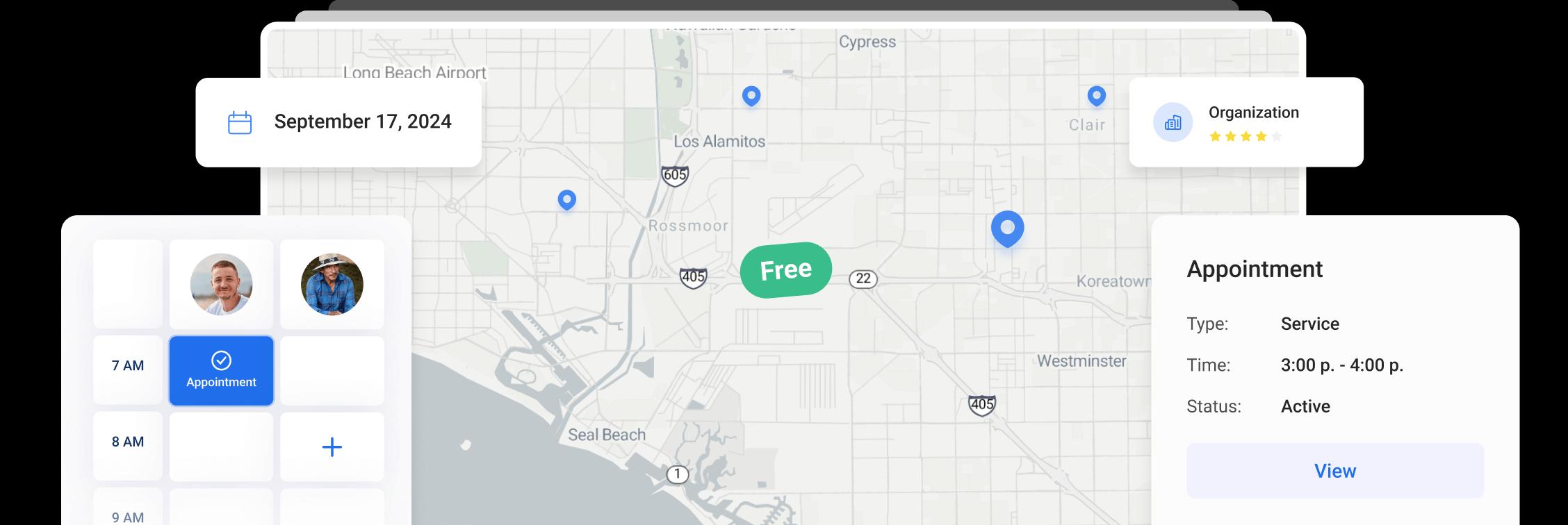
Time Cards in Orcatec: A Complete Beginner's Guide
Reading time: ~7 min
Time Cards is where Orcatec records when each person starts and stops work. Your team clocks in and out, and the office sees hours per user on one page, ready to check and export for payroll.
This guide is for owners and office managers who run payroll, and for technicians who clock in every day. You will learn:
- What Time Cards records and who uses it
- How to clock in and out on the web and in the mobile app
- How GPS clock-in works
- How to read, filter and export the Timecards page
- A 15-minute weekly routine that catches mistakes before payroll
Note: Time Cards is an optional add-on. An admin can turn it on from the company subscription. If you do not see Time Cards under More in the top menu, the add-on is not active on your account.
On this page
- What Time Cards does
- Clocking in on the web
- Clocking in on the mobile app
- Clock-in with GPS
- The Timecards page
- Weekly payroll-prep routine
- Frequently asked questions
- Checklist for your first week of Time Cards
What Time Cards does
Time Cards answers one question: how long did each person work, and when? It is a clock, not a schedule. Appointments show where a technician was supposed to be. Time Cards shows when they were on the clock.
| Who | What they do in Time Cards |
|---|---|
| Technicians | Clock in at the start of the day, out for lunch, back in, and out at the end |
| Office staff and dispatchers | Clock in and out on the web the same way |
| Owner or office manager | Review hours on the Timecards page, fix gaps, export for payroll |
It works the same for a two-person handyman crew and a twelve-truck plumbing and HVAC shop. The bigger the team, the more time a clean weekly check saves.
Clocking in on the web
Every page in the Orcatec web app shows the clock at the top left.
- Find the Clock in button at the top left of any page.
- Look at the text next to it: Current status: Clocked out.
- Click Clock in. Your status changes right away.
- Click the same button again when you stop working to clock out. While you are clocked in, the button reads Clock out and the status line shows Clocked in with the time.

Top-left corner of the web app: the Clock in button and Current status: Clocked out.
Tip: Office staff forget to clock in more often than technicians, because nothing in the office workflow reminds them. Make "Clock in" the first click of the morning, before email.
Clocking in on the mobile app
Technicians usually clock in from the Orcatec mobile app. The steps below come from the public Clock in and out tutorial. Labels and menu positions can shift a little between app versions, so if your screen looks different, look for the same words.
Option 1: From the Appointments page
- Log in to the mobile app. You land on the Appointments page.
- Tap Clock In in the top right corner.
- Your status changes immediately.
Option 2: From the Schedule
- Tap the menu button in the top left corner.
- Select Schedule.
- Check today's appointments.
- Tap Clock In in the top right corner.
Lunch and the end of the day
The recommended routine is simple:
- Clock out when you start lunch.
- Clock back in when you return.
- Clock out at the end of the workday.
This keeps paid time and break time separate, so your hours are accurate without anyone editing them later.
Checking your own hours on mobile
- Tap the menu button in the top left corner.
- Tap your profile picture.
- Select Time Card from the popup menu.
- Choose a date range and review your hours.

Profile menu in the web app with the Timecards shortcut.
Why should technicians check their own time card? Optional
When technicians check their own hours each Friday, missing clock-outs get fixed while everyone still remembers the day. It also builds trust: people who can see exactly what was recorded are less worried about how the data is used.
Clock-in with GPS
Orcatec can require a location when employees clock in from the mobile app. According to the public tutorial, this is the Clock-in with GPS setting in Settings > Users, and employees with it turned on can only clock in when location services are enabled on their phone. Path: Settings > Users & Groups > open the user > Use Clock-in with GPS. When it is on, that user can clock in only from the Android or iOS app with location services enabled; clock-in via the browser is not possible.
- Click More, then Settings.
- Open the users section and select the employee.
- Turn on Clock-in with GPS.
- Save.

Settings user profile with the Clock-in with GPS setting
Before you turn it on, tell your team what is recorded and when. People accept location data much more easily when they hear about it from you first, not from a notification. The post on GPS tracking your technicians without killing trust includes a short policy and a meeting script. Location rules vary by state, and this is general information, not legal advice.
GPS clock-in vs live GPS tracking Advanced
GPS clock-in records location when someone clocks in. Live locations and trails on the Map are a separate optional add-on, GPS Tracking, and need technicians using the mobile app. See the Map guide for how trails and routes appear.
The Timecards page
This is where the office reviews everyone's hours.
- Click More in the top menu.
- Click Time Cards. The Timecards page opens.

Timecards page with columns, timezone selector and week date range
Columns
| Column | What it shows | What to look for |
|---|---|---|
| User Name | The employee | Anyone missing who worked this week |
| Role | For example Owner, Administrator, Dispatcher | Roles that should or should not be clocking |
| Current Status | Clocked In or Clocked Out right now | Someone still Clocked In at night: a missed clock-out |
| Total Time Today | Hours on the clock today | Unusually long or zero days |
| Time Worked | Hours in the selected date range | Totals far above or below the schedule |
| Days Worked | Days with clocked time in the range | A technician who ran jobs on a day with no time |
Tools on the page
| Tool | What it does |
|---|---|
| Timezone selector | Shows times in the timezone you pick. Use your company timezone for payroll |
| Date range | Pick the week or pay period to review |
| Search timecards | Find one employee fast |
| Export icon | Download the table for payroll or your bookkeeper |
| Fullscreen and settings icons | Expand the table and choose which columns to show |

Timecards toolbar with Search timecards, export, fullscreen and settings icons
Tip: If your team works in one time zone, set the selector to that zone every time you export. Hours that cross midnight are the easiest ones to misread.
Weekly payroll-prep routine
Run this every week, on the same day, before you send hours to payroll. It takes about 15 minutes for a small team.
- Open More > Time Cards and set the date range to the pay week.
- Scan Current Status. Anyone still Clocked In from a past day probably forgot to clock out. Ask them for the real end time.
- Check Days Worked against the Dispatch board. A technician with appointments on a day but no time on the clock needs a follow-up.
- Look for unusually long days in Time Worked. A 14-hour day may be real during a heat wave or a freeze, or it may be a forgotten clock-out.
- Resolve every issue before exporting. If an hour total needs correcting, follow your company's process and write down what changed and why.
- Click the export icon and send the file to payroll or your bookkeeper.
- Keep the exported file with that week's payroll records.
Frequently asked questions
Is Time Cards included in every Orcatec plan?
No. Time Cards is an optional add-on. If Time Cards does not appear under More, ask your account admin to add it to the subscription.
What happens if a technician forgets to clock out?
Their Current Status stays Clocked In, so the hours for that day are wrong until someone fixes them. Catch it in the weekly routine: look for anyone still clocked in from a past day and confirm the real end time with them.
Should technicians clock out for lunch?
Yes. The recommended routine is to clock out at lunch, clock back in after, and clock out at the end of the day. It keeps break time out of paid hours.
Can I see hours for one employee only?
Yes. Use Search timecards on the Timecards page and set the date range you need.
Does GPS clock-in track technicians all day?
GPS clock-in is about the moment of clocking in. Live locations and trails on the Map are a separate optional add-on, GPS Tracking.
Checklist for your first week of Time Cards
- Confirm Time Cards appears under More
- Show every employee the Clock in button and Current status on the web
- Show technicians Clock In in the mobile app and the lunch routine
- Decide whether to use Clock-in with GPS, and tell the team before you turn it on
- Pick one timezone for payroll and use it every export
- Put the weekly payroll-prep routine on your calendar
- Run your first export and check it with your bookkeeper
Time data works best when your team knows what is recorded and why. Read GPS Tracking Your Technicians Without Killing Trust before you roll out location features.
Other Articles
Customer Texts and Automatic Reminders in Orcatec: A Complete Beginner's Guide
A click-by-click guide to texting customers from Orcatec and setting up automatic notifications: appointment reminders, En Route texts, cancellations and more, with real message examples and holiday-week tips.
4 min read Sep 28, 2026
Time Cards in Orcatec: A Complete Beginner's Guide
A step-by-step guide to Time Cards in Orcatec. Learn how your team clocks in and out on web and mobile, how the office reviews and exports hours, and a simple weekly routine that makes payroll faster.
3 min read Sep 28, 2026
The Map in Orcatec: A Complete Beginner's Guide
The Map shows your team's day by location, so you can see who is closest to a new call. This guide covers the toolbar, employee filter, schedule panel, creating appointments from the Map and what needs the GPS Tracking add-on.
10 min read Sep 28, 2026
All-In-One Home Services Management Software


4.95 from 5 based on 17 reviews
Get our latest news