The Map in Orcatec: A Complete Beginner's Guide
Reading time: ~7 min
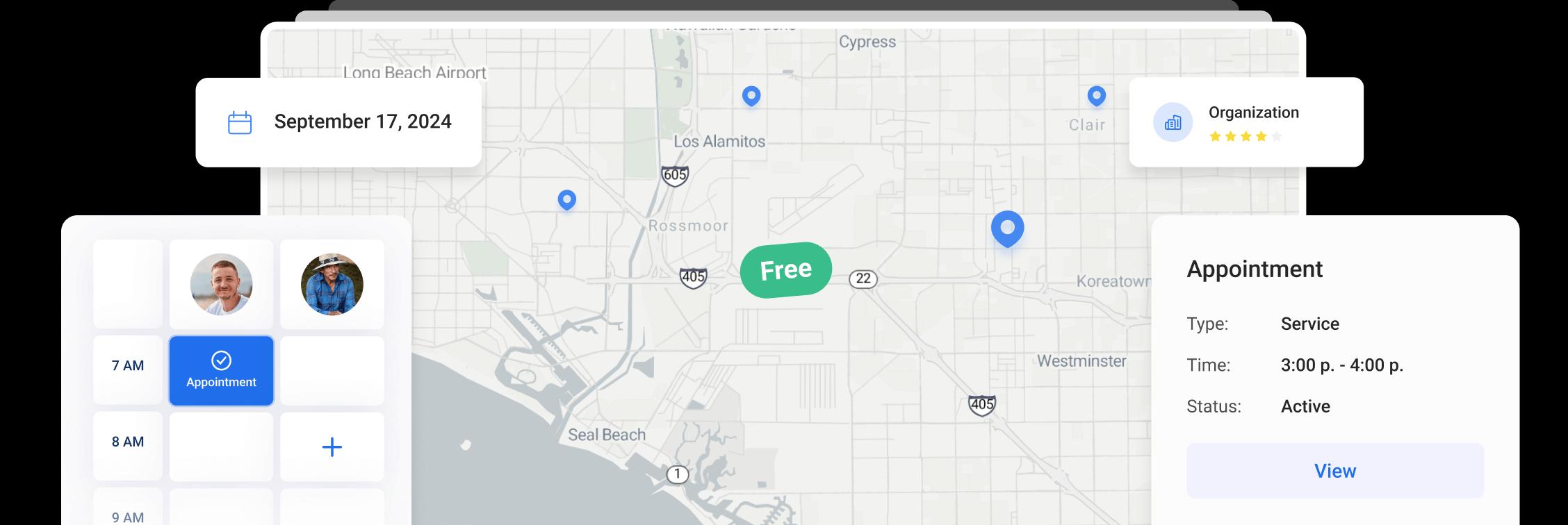
The Map shows your team's day on a map instead of a grid. You see where each employee starts, where their jobs are and, with the right add-ons, where they have been and which routes they are running. It answers one question fast: who is closest to this new call?
This guide is for dispatchers and owners. It covers the toolbar, choosing employees, the legend, the schedule panel, creating an appointment from the Map, what needs an add-on, and a cold-weather example.
Tip: Use the Map to decide who and when by location. Use Dispatch for day-to-day scheduling across the whole board. The two work together.
On this page
- Opening the Map
- The toolbar
- Choosing employees
- Reading the map and legend
- The schedule panel
- Creating an appointment from the Map
- Example: the closest tech for a no-heat or no-water call
- Privacy: tell your team
- Frequently asked questions
- Checklist for your first day on the Map
Opening the Map
Click Map in the top menu. The page has three parts:
- The toolbar across the top
- The map on the left, with a color legend of employees
- The schedule panel on the right, one column per selected employee by hour

Map page with toolbar, map with legend on the left and schedule columns on the right
The toolbar
| Control | What it does |
|---|---|
| Create appointment | Starts a new appointment It opens the appointment panel on the right with Appointment source, Appointment type, Industry, Preferred User, Time zone, Appointment Date, Promised arrival time, Repeat options, Assigned to (Appt Queue by default), Appointment Notes, Tags and Appointment Property, plus a Create button at the top. |
| Show Trails | Checkbox (on by default). Shows where employees have been |
| Show Routes | Checkbox (on by default). Shows routes on the map |
| Satellite | Checkbox. Switches to satellite imagery |
| Selected Employees (N) | Dropdown to choose whose day you see. N is how many are selected |
| Date picker with < and > | Pick a day, or step one day back or forward |
| Schedule icon (with a count) | Shows or hides the schedule panel |
| Queue icon (with a count) | The appointment queue, with the number of items in it |

Toolbar with Create appointment, Show Trails, Show Routes, Satellite, Selected Employees and date picker
What do Show Trails and Show Routes need? Advanced
Live locations and trails come from the optional GPS Tracking add-on, and each technician must use the Orcatec mobile app. Show Trails and Show Routes are checkboxes in the map toolbar and follow the date you pick in the date picker. Without GPS Tracking there is no location data, so no trails are drawn. Optimized routes come from the optional Route Optimization add-on, set up in Settings > Dispatch. See the AI route optimization tutorial.
Choosing employees
Click Selected Employees (N). The dropdown has:
- Search Employee to find someone by name
- Select All to show everyone
- Reset All to clear the selection
- List Of Employees, where each name shows its role, for example "Ashley, Tech" or "Alex Gold, President"
Tick the employees you want to see. Each one gets a color on the map and a column in the schedule panel.

Selected Employees dropdown with Search Employee, Select All, Reset All and List Of Employees
Tip: On a busy day, select only the techs who can take the call type in front of you (for example, only your plumbers for a water heater leak). A cleaner map means a faster decision.
Reading the map and legend
The legend on the map lists employees by color, so you can match what you see on the map to a person at a glance. House icons mark home or start locations, which is useful for the first call of the morning and the last call of the day.
Switch on Satellite when the street view is not enough: finding the right building on a commercial lot, a rural driveway or where a service van can park.

Map legend with color-coded employees and house icons for start locations
The schedule panel
The right side shows a column for each selected employee, broken down by hour. It shows who is booked and where the open time is. Read it together with the map: a tech with a free hour at 2 PM whose 1 PM job is ten minutes from the new call is usually the right choice.
Use the date picker and the < and > arrows to look at another day, for example to book a follow-up visit for a tech who will already be in that neighborhood.
Creating an appointment from the Map
- Find an employee with open time in the schedule panel.
- Click an empty slot in their column. A New appointment draft appears with the date, time and employee (column) filled in.
- Press Enter or click Create appointment to confirm. Press Esc or click Discard to cancel.
- Complete the appointment details. Careful: clicking Create appointment in the draft creates the appointment right away and opens its card, with the date, time and technician already filled in. Add the source, type, property and notes there and click Save. If you clicked the wrong slot, click Discard in the draft instead.

New appointment draft in the schedule panel with Create appointment and Discard buttons.
When to use Dispatch instead: if you need to move many appointments, work from the queue, or plan the full week, Dispatch is built for that. The Map is best for location-based decisions. See the Dispatch guide.
Example: the closest tech for a no-heat or no-water call
The first cold morning of the season, a call comes in at 10:40 AM: no heat in a house with a baby, or a burst supply line under a sink. You need someone there fast.
- Open Map and check the date is today.
- In Selected Employees, choose the techs who can handle the call type.
- Locate the caller's neighborhood on the map and look for the nearest employee color.
- Check that tech's column in the schedule panel. Can the current job finish soon? Is the next job movable?
- If yes, create the appointment in their open slot. If the slot is taken by a non-urgent job, move that job in Dispatch first.
- Let the customer know when to expect the tech. The automatic En Route text (set up in Settings > Notifications) sends an ETA when the tech heads out.
Once the emergency is placed, look at what you moved. Any customer whose appointment slipped should hear about it before the original time, not after. If several jobs shifted, finish the reshuffle in Dispatch, where you can see the whole board, then come back to the Map for the next urgent call.
The same routine works for a locksmith lockout or a garage door stuck open at night: closest qualified tech first, then reshuffle the rest of the day.
Map with several technicians selected, showing who is nearest to the caller's area
Privacy: tell your team
If you use GPS Tracking, tell your technicians what is recorded, when and who can see it, before you switch it on. It builds trust and helps you stay on the right side of state notice and consent rules. For a policy template and plain-language overview, read GPS Tracking Your Technicians Without Killing Trust.
Frequently asked questions
Why don't I see live technician locations?
Live locations need the optional GPS Tracking add-on, and each tech must use the Orcatec mobile app.
What do the house icons mean?
They mark employees' home or start locations.
Can I book an appointment from the Map?
Yes. Click an empty slot in an employee's column, then press Enter or click Create appointment. Press Esc or Discard to cancel.
Should dispatchers use the Map or Dispatch?
Both. Use the Map to pick the closest tech. Use Dispatch to plan the whole board and work the queue.
How do I turn on route optimization?
Route Optimization is an optional add-on, set up in Settings > Dispatch. See the AI route optimization tutorial.
Checklist for your first day on the Map
- Opened Map and confirmed today's date in the date picker
- Selected the right employees with Selected Employees
- Matched each employee to their legend color
- Checked the schedule panel for open slots
- Tried Satellite on a hard-to-find address
- Created a test appointment from an empty slot, then used Discard to practice canceling
- Checked whether your plan includes GPS Tracking and Route Optimization
- Told your team how location data is used, if GPS Tracking is on
Getting ready for the first cold snap? Read The Heating-Season Dispatch Checklist for HVAC and Plumbing Shops.
Other Articles
Customer Texts and Automatic Reminders in Orcatec: A Complete Beginner's Guide
A click-by-click guide to texting customers from Orcatec and setting up automatic notifications: appointment reminders, En Route texts, cancellations and more, with real message examples and holiday-week tips.
4 min read Sep 28, 2026
Time Cards in Orcatec: A Complete Beginner's Guide
A step-by-step guide to Time Cards in Orcatec. Learn how your team clocks in and out on web and mobile, how the office reviews and exports hours, and a simple weekly routine that makes payroll faster.
9 min read Sep 28, 2026
The Map in Orcatec: A Complete Beginner's Guide
The Map shows your team's day by location, so you can see who is closest to a new call. This guide covers the toolbar, employee filter, schedule panel, creating appointments from the Map and what needs the GPS Tracking add-on.
7 min read Sep 28, 2026
All-In-One Home Services Management Software


4.95 from 5 based on 17 reviews
Get our latest news